How to 3D print an AI-generated model (Meshy, Tripo, Hunyuan3D)
AI generators can turn a prompt or a photo into a 3D model in a minute — and then your slicer complains, or the print fails. Here is what usually goes wrong with AI models, and the five-step prep that makes them printable.
Short version: remove the floating fragments, repair the surface, give it a flat base, set its real size, and check it fits your printer. You can do all five in a browser in a couple of minutes.
Why AI models fail to print
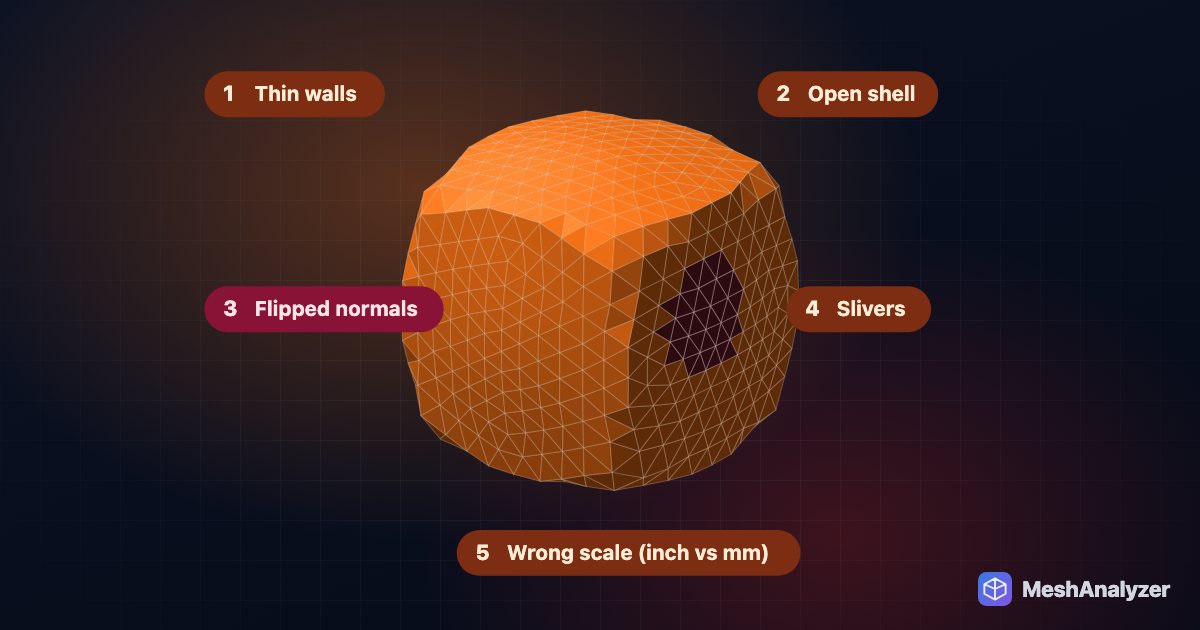
- Floating fragments. Small loose pieces that look attached but aren't — they print as spaghetti or not at all.
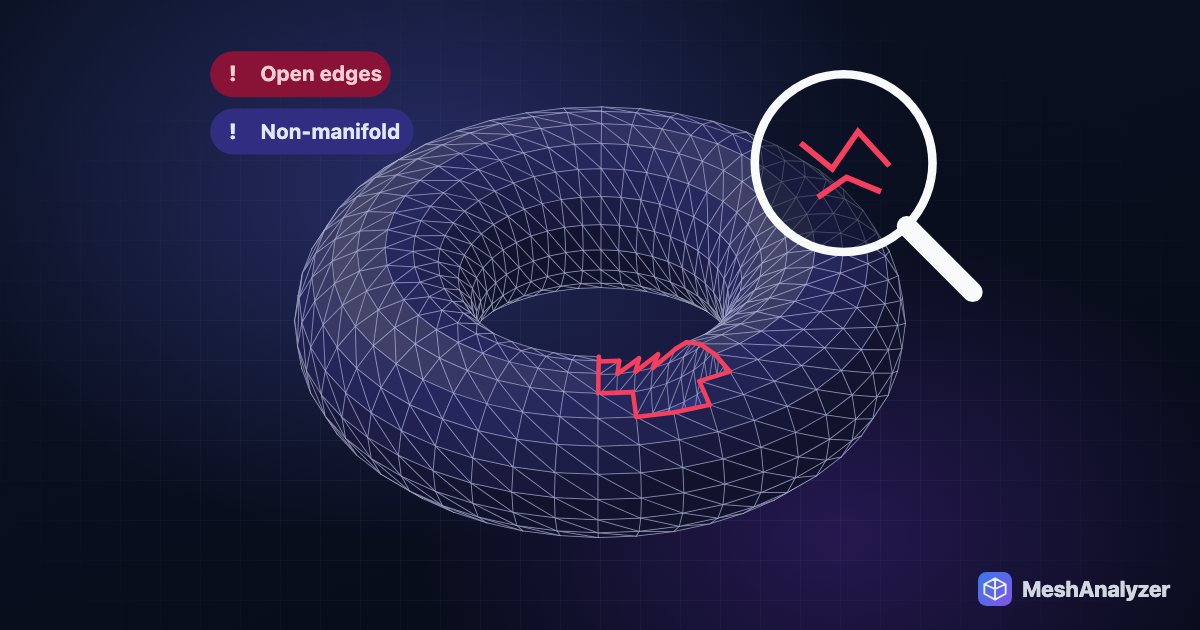
- Holes and non-manifold edges. The surface isn't fully closed, so the slicer can't tell inside from outside.
- A rounded or tilted bottom. Figures and busts often have no flat face to sit on, so they need heavy supports or tip over.
- No real size. AI tools export in arbitrary units, so a figure can arrive 2 mm or 2 metres tall.
- Very thin details — fingers, swords, hair strands thinner than your nozzle can print.
Prep an AI model in five steps
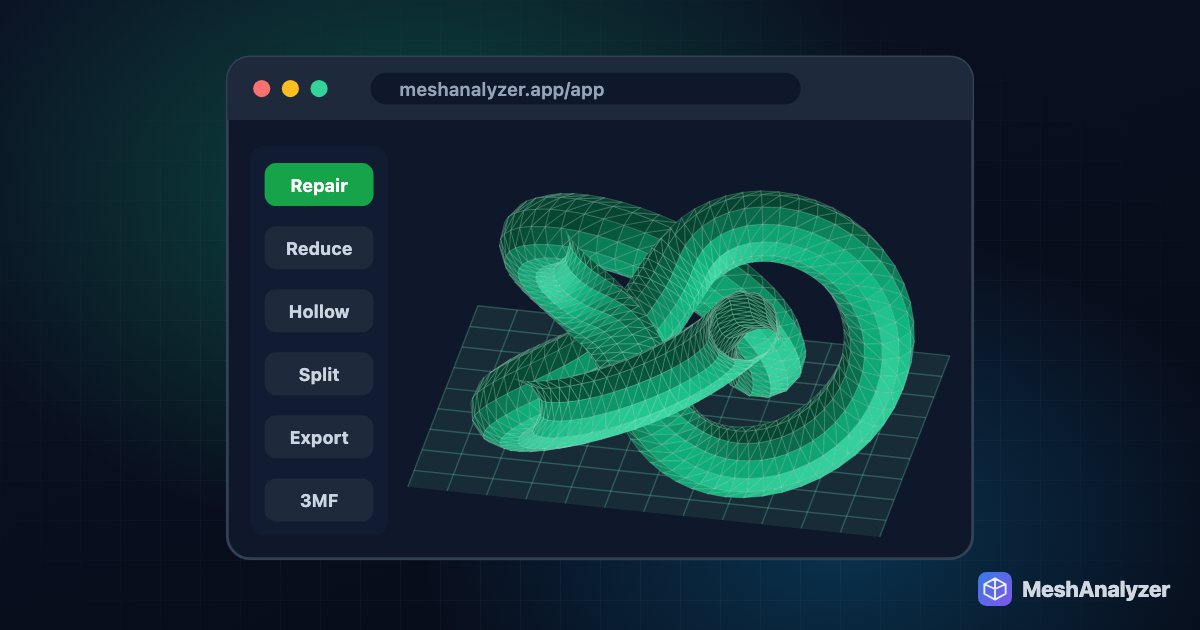
- Open MeshAnalyzer and drop in the GLB, OBJ or STL from Meshy, Tripo, Hunyuan3D or any other generator. Nothing is uploaded.
- 🧹 Remove floating bits. Under Fit My Printer, this finds the small loose fragments and deletes them, while keeping real second parts like a separate base.
- ✨ Auto-Repair. Closes holes, welds the surface and fixes flipped faces. If the model passes through itself, 🧊 Make Solid rebuilds it as one closed body.
- ▁ Flat base. Slices a little off the bottom — 1–3 mm is usually enough — so the model stands flat on the bed.
- Set the size and check the fit. Enter the real size you want (the longest side, in mm) in the Cost & Time panel, pick your printer, and if it's too big use Scale to fit or Split to fit. Then download a 3MF for Bambu Studio, OrcaSlicer or PrusaSlicer.
Thin details and supports
- Check the thinnest wall. MeshAnalyzer measures wall thickness in millimetres. Anything under about 0.8 mm is risky on a 0.4 mm nozzle; scale the model up or accept that some detail may not print.
- Use tree supports in your slicer for figures — they're easier to remove from organic shapes.
- Resin printers handle fine AI detail much better than FDM; hollow larger models to save resin.
FAQ
Why won't my Meshy or Tripo model print?
AI-generated models usually have small floating fragments, holes in the surface, no flat base and an arbitrary scale. Removing the fragments, repairing the mesh, cutting a flat base and setting the real size fixes most of them.
Can I fix an AI 3D model without Blender?
Yes. MeshAnalyzer runs in your browser and does the usual Blender cleanup in a few clicks: remove floating bits, auto-repair, flat base, scale and check the fit for your printer.
Does Meshy's own repair work on models from other tools?
Meshy's one-click repair is aimed at models generated with Meshy; repairing other files goes through its paid API. MeshAnalyzer works on any STL, OBJ, GLB, 3MF or STEP file.
What file format should I export from the AI generator?
GLB or OBJ keep the most detail. Open it in MeshAnalyzer, prepare it, and download a 3MF or STL for your slicer.
Is my AI model uploaded anywhere?
No. Everything runs in your browser on your own computer, so unreleased designs stay private.
More reading: Split an STL that is too big for your printer · How to fix non-manifold STL files · 5 reasons STL prints fail
Make your AI model printable
Remove floating bits, repair, flat base and fit — free to try, nothing uploaded.
▶ Open MeshAnalyzer