How to split an STL that is too big for your 3D printer
Your model is 300 mm tall and your bed is 256 mm. You can shrink it and lose the size you wanted, or cut it into pieces that each fit and glue them back together. This guide covers when to do which, where to cut, and how to get pieces that line up perfectly with alignment pins.
Short version: check whether turning or scaling solves it first. If it doesn't, split the model into the fewest pieces that fit, add alignment pins so the joints are straight, and print the pieces separately.
First: does it really not fit?
Before cutting anything, measure the part against your usable build volume. Slicers keep a few millimetres free at the edges, so plan for about 5 mm less than the printer's advertised size. Then try the cheap fixes:
- Turn it on the bed. A part that is 270 × 200 mm does not fit a 256 × 256 bed straight, but rotating it 90° sometimes helps when the bed is not square (Prusa MK4: 250 × 210).
- Lay it down. A tall, thin part may fit lying on its side, if the print quality on that side is acceptable.
- Scale it a little. If you only need to lose 5–10%, scaling is simpler than gluing.
Where to cut
- Through thick, simple sections — a torso, a base, a straight tube. Joints there are strong and easy to hide.
- Not through faces, lettering, thin walls or small details. A seam across a face is the first thing people see.
- Where the cut face prints well. A flat cut face can go straight onto the bed, which often gives you a better first layer than the original bottom.
- Into as few pieces as possible. Every joint is another seam to fill and another place to misalign.
Alignment pins: why they matter
Gluing two flat faces together by eye almost always ends up a fraction of a millimetre off, which shows as a step along the seam. Pins fix that: a small hole in both faces and a loose dowel that slots into both, so the pieces can only meet one way.
- Print the pins separately, not attached to a piece — separate pins are stronger and fit better.
- Leave clearance. FDM printers make holes slightly smaller than designed (typically 0.1–0.3 mm), so a 5 mm pin needs a hole of about 5.4 mm to push in by hand.
- Use two pins per joint on bigger faces so the pieces cannot twist.
Split a model in your browser, step by step
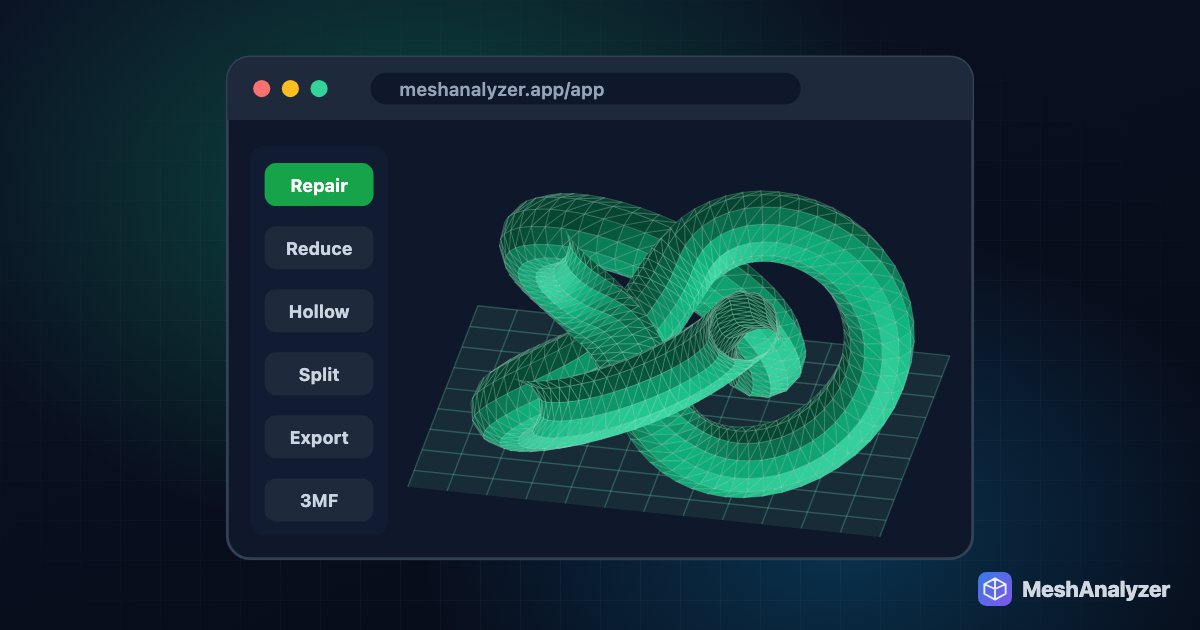
- Open MeshAnalyzer and drop in your STL, 3MF or STEP file. Nothing is uploaded — it runs on your computer, on Mac, Windows or Linux.
- Repair it first if needed. Splitting needs a closed (watertight) mesh. If the analysis shows open edges, click ✨ Auto-Repair.
- Choose your printer under Fit My Printer. You'll see "✕ Too big for the Bambu Lab A1 mini" or similar, with the size.
- Leave "Add alignment pins" ticked and click ✂ Split to fit. The model is cut into the fewest pieces that fit, each one closed, with 5 mm sockets in both faces and loose pins laid out beside them.
- Download a 3MF and open it in Bambu Studio, OrcaSlicer or PrusaSlicer. Use Split → To objects to arrange the pieces and pins on plates.
Gluing and finishing
- Dry-fit first. Push the pins in and close the joint without glue to check alignment.
- PLA and PETG: thin superglue (CA) is quick; two-part epoxy is stronger for large parts.
- Hide the seam with filler primer and light sanding before painting.
FAQ
Can Bambu Studio split a model that is too big?
Bambu Studio has a cut tool, but it cuts once at a time and adds no pins automatically. MeshAnalyzer splits the model into all the pieces needed in one step, keeps every piece watertight and adds matching alignment pins.
What size should alignment pin holes be?
For FDM printing, make the hole about 0.4 mm larger than the pin — for a 5 mm pin, a 5.4 mm hole — because printed holes come out slightly undersized. MeshAnalyzer uses exactly that by default.
Will splitting change the size of my model?
No. Split to fit keeps the model at full size; only Scale to fit makes it smaller.
Do I need to repair the model before splitting?
Yes. A split needs a closed, watertight mesh, otherwise the cut faces cannot be filled. Run Auto-Repair first if the analysis shows open edges.
Is my file uploaded when I split it?
No. Analysis, repair and splitting all run in your browser on your own computer.
More reading: How to fix non-manifold STL files · How to 3D print an AI-generated model · Bambu Studio Fix Model on a Mac
Too big for your bed?
Check the fit and split it with alignment pins — free to try, no install.
▶ Open MeshAnalyzer