3MF vs STL: which file should you give your slicer?
STL has been the default 3D printing file for over thirty years. Bambu Studio, PrusaSlicer, OrcaSlicer and Cura now all save projects as 3MF, and model sites increasingly offer both. Here is what actually differs, and which one to pick.
Short version: use 3MF whenever your slicer reads it — it keeps the real size, can hold several parts and colours, and is smaller. Use STL when a print service, marketplace or older tool asks for it. The quality of the print is the same; the triangles are the same.
What each file stores
| STL | 3MF | |
|---|---|---|
| Surface triangles | Yes | Yes |
| Units (mm, inch) | No — just numbers | Yes |
| Several objects / plates | One blob of triangles | Yes, named objects |
| Colours and materials | No | Yes |
| Slicer settings, supports, painting | No | Yes (slicer project files) |
| Shared vertices | No — every triangle repeats its corners | Yes — corners stored once |
| File size | Large | Usually much smaller (zipped) |
| Supported by | Everything | All current major slicers and CAD tools |
The three problems 3MF quietly fixes
Wrong scale
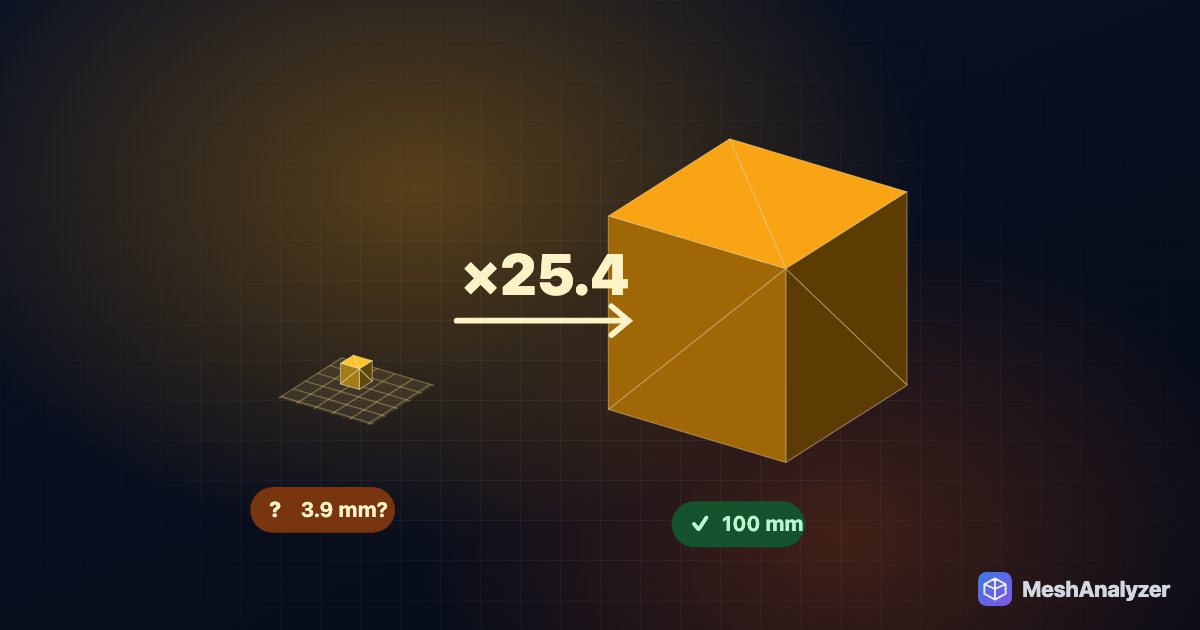
An STL is just coordinates. If the designer worked in inches, your slicer reads 2.0 as 2 mm and the part arrives 25.4× too small. A 3MF says “millimetre” (or “inch”) in the file, so the slicer gets it right. More on that in STL imports tiny or huge?.
Tiny gaps between triangles
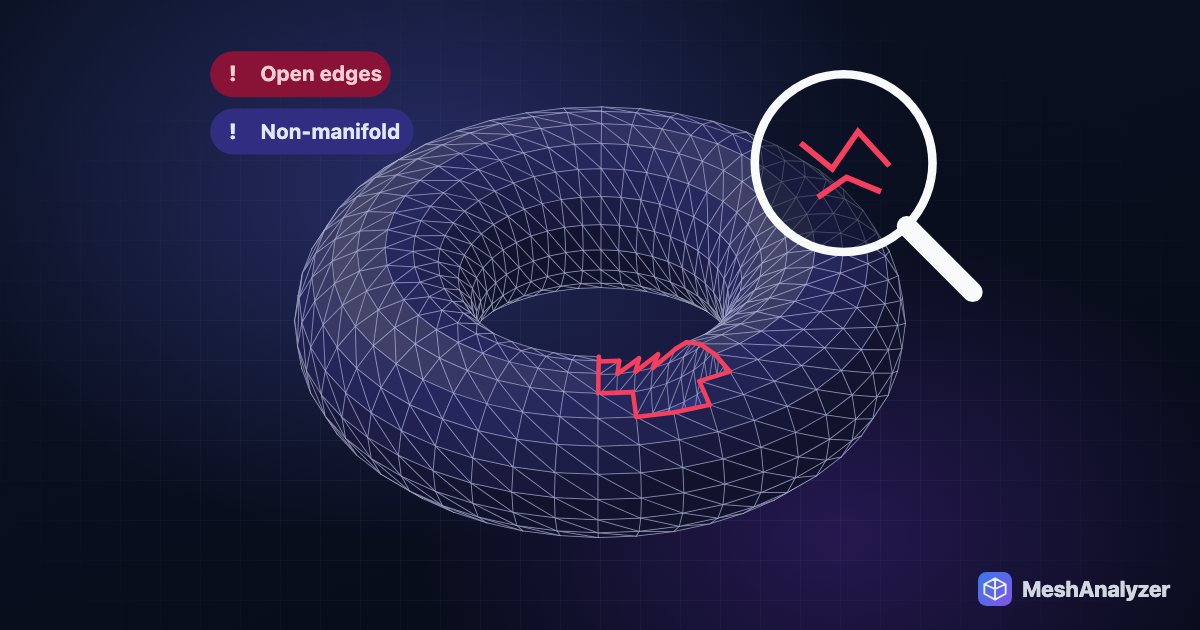
Because STL stores every triangle's corners separately, two neighbouring triangles can disagree by a rounding error. The slicer then sees a hairline gap and reports open or non-manifold edges. 3MF stores each corner once and lets triangles share it, so a clean mesh stays clean.
Multi-part prints
A split model, a print-in-place hinge or a figure with its base is several objects. In STL they are one undivided blob; in 3MF each piece keeps its own name and position, so you can move, rotate or assign filament per part.
When STL is still the right answer
- Print services and marketplaces that only accept STL uploads.
- Older or niche tools — some CNC CAM, sculpting and resin tools still read STL only.
- Sharing a single, simple part where everyone already knows the scale.
If you publish models, uploading both is kind to everyone: 3MF for the slicer project, STL for everything else.
Converting between them
- Open the file in MeshAnalyzer — STL, 3MF, OBJ, GLB or STEP. 3MF units are read correctly, so an inch-based 3MF is converted to millimetres on import.
- Check the size and the analysis, repair if needed.
- Download 3MF or STL. Both export in real millimetres and in the original orientation (Z up), so the model lands on the bed the way it was designed.
FAQ
Is 3MF better than STL for 3D printing?
For most people, yes. 3MF stores units, multiple objects and colours, shares vertices between triangles and is smaller. The printed result is the same; STL is still the most widely accepted format.
Does 3MF print better quality than STL?
No. Both describe the surface with the same triangles. 3MF avoids problems around the print — wrong scale, hairline gaps between triangles, merged parts — rather than improving the surface itself.
Can Bambu Studio, PrusaSlicer and Cura open 3MF?
Yes. Bambu Studio, OrcaSlicer, PrusaSlicer and Cura all open and save 3MF.
How do I convert STL to 3MF?
Open the STL in MeshAnalyzer in your browser, check the size, and choose Download → 3MF. It is free and nothing is uploaded.
Why is my 3MF file so much smaller than the STL?
3MF stores each corner of the mesh once and compresses the file as a ZIP, while STL repeats every corner for every triangle.
More reading: STL imports tiny or huge? Fix inches vs millimetres · How to convert STEP to STL or 3MF for 3D printing · How to fix non-manifold STL files for 3D printing
Convert STL to 3MF in one click
Real millimetres, original orientation, repaired if needed — free, in your browser.
▶ Open MeshAnalyzer