STL imports tiny or huge in your slicer? Fix inches vs millimetres
You download a model, drop it into the slicer, and it’s a speck in the middle of the bed — or so big it covers the whole plate. Nothing is broken. The file simply doesn’t say what unit it was made in, and your slicer guessed millimetres.
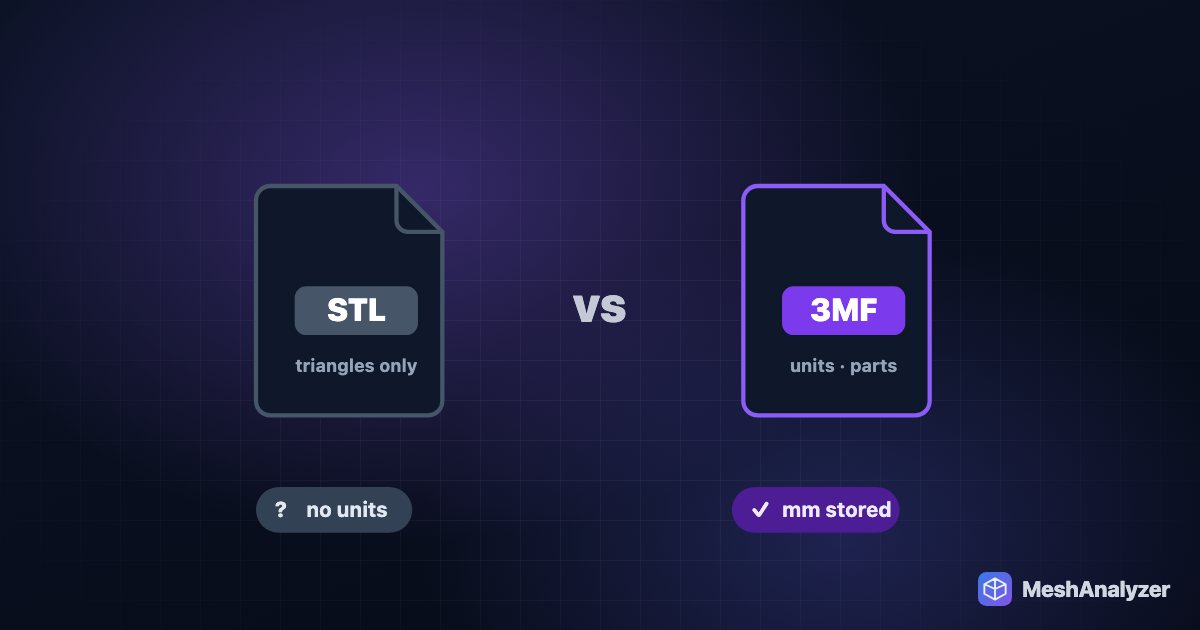
Short version: STL stores plain numbers with no unit. Slicers assume millimetres. If the designer worked in inches, the part arrives 25.4× too small; in centimetres, 10× too small; in metres, 1000× too small. Scale it by that factor, or better, ask for or export a 3MF, which records the unit.
Recognise the mix-up from the size
| What you see | Likely cause | Fix |
|---|---|---|
| About 4% of the expected size (a 100 mm part reads ≈3.9 mm) | Modelled in inches | Scale × 25.4 (2540%) |
| One tenth of the expected size | Modelled in centimetres | Scale × 10 |
| A thousandth of the size — basically invisible | Modelled in metres (common from Blender, SketchUp, game assets) | Scale × 1000 |
| 25 times too big | Millimetre file opened by a tool that assumed inches | Scale × 0.03937 (3.937%) |
| Arbitrary size (2 units tall) | AI generator or game asset with no real-world scale | Set the height you want directly |
The quickest test: you know roughly how big the object should be. Divide the size you expected by the size you got. If the answer is close to 25.4, 10 or 1000, that’s your factor.
Fix it in your slicer
- PrusaSlicer: right-click the object → Convert from imperial units, or set the scale to 2540%.
- Bambu Studio / OrcaSlicer: they may offer to convert units when a very small model is imported; otherwise set the scale factor in the object’s scale fields.
- Cura: select the model, open the Scale tool, untick nothing (keep uniform scaling) and type 2540%.
Fix it once, in the file
Scaling in the slicer has to be repeated every time you load the STL. Fixing the file itself is better, especially if you’re sharing it.
- Open the STL in MeshAnalyzer. The toolbar shows the current size in millimetres.
- Type the real size — the length of the longest side in mm — into Real-world size in the Cost & Time panel. The model is scaled evenly in all three directions, and the fit check and every export use that size.
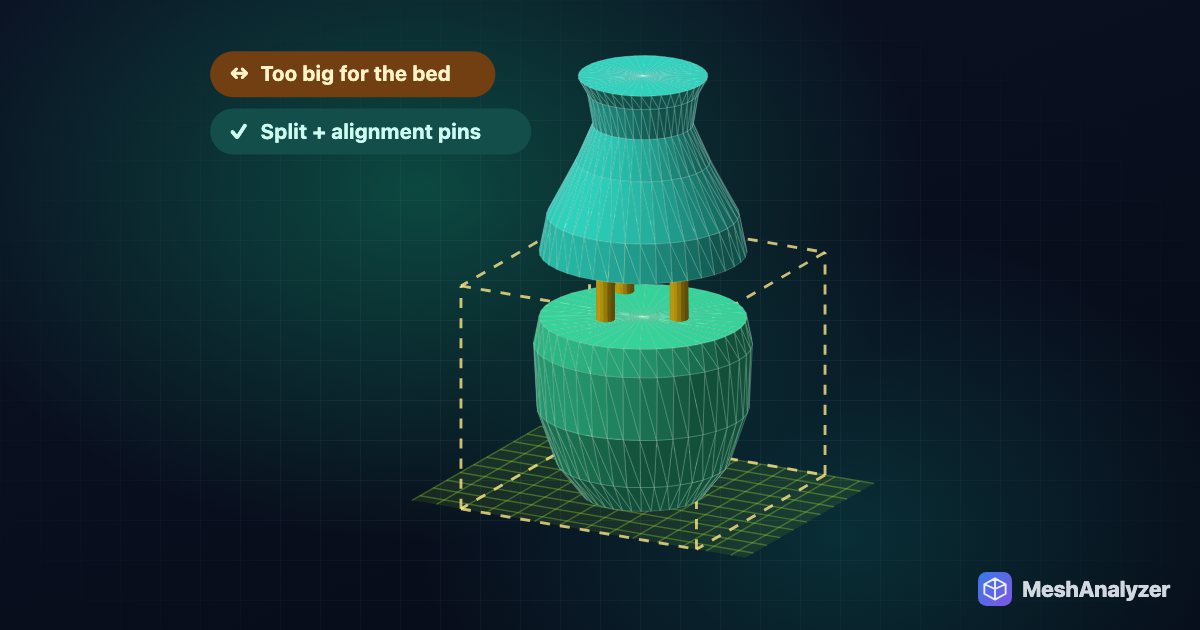
- Pick your printer under Fit My Printer to check it fits at its real size; if it doesn’t, Split to fit cuts it into pieces with alignment pins.
- Download a 3MF. It stores “millimetre” in the file, so anyone opening it gets the right size, every time.
Designers: stop it happening
- Set your CAD document units to millimetres before exporting, or pick “mm” in the STL export dialog when there is one (Fusion, Onshape, SolidWorks all have it).
- In Blender, set Unit Scale to 0.001 with Length in millimetres, or scale on export.
- Publish a 3MF next to the STL — see 3MF vs STL.
FAQ
Why is my STL so small in the slicer?
STL files have no units and slicers assume millimetres. A model made in inches arrives 25.4 times too small, in centimetres 10 times, and in metres 1000 times too small.
How do I convert an STL from inches to millimetres?
Scale it by 25.4 (2540%). In PrusaSlicer, right-click and choose Convert from imperial units; in MeshAnalyzer type the real size into Real-world size and download a 3MF that stores millimetres.
Why is my model 1000 times too small?
It was exported in metres, which is common for Blender, SketchUp and game assets. Scale it by 1000.
Does 3MF fix the units problem?
Yes. A 3MF file records its unit, so slicers import it at the right size.
Can I set an exact size for my model?
Yes. In MeshAnalyzer, type the length of the longest side in millimetres into Real-world size and the model scales evenly to match; exports use that size.
More reading: 3MF vs STL: which file should you give your slicer? · How to convert STEP to STL or 3MF for 3D printing · How to split an STL that is too big for your 3D printer
Get the real size back
Type the size you want and export a 3MF that remembers it — free, in your browser.
▶ Open MeshAnalyzer