How to make a 3D scan printable (phone, LiDAR and photogrammetry)
Scanning an object with your phone, a Revopoint or Creality scanner, or a photogrammetry app is easier than ever. Printing the result is where people get stuck: holes where the camera couldn’t see, floating specks of background, a ragged bottom and millions of triangles. Here is the cleanup, in order.
Short version: crop away the background, remove floating bits, close the holes, cut a flat base, simplify, then set the real size. Order matters — every step makes the next one easier.
Why scans don’t print straight away
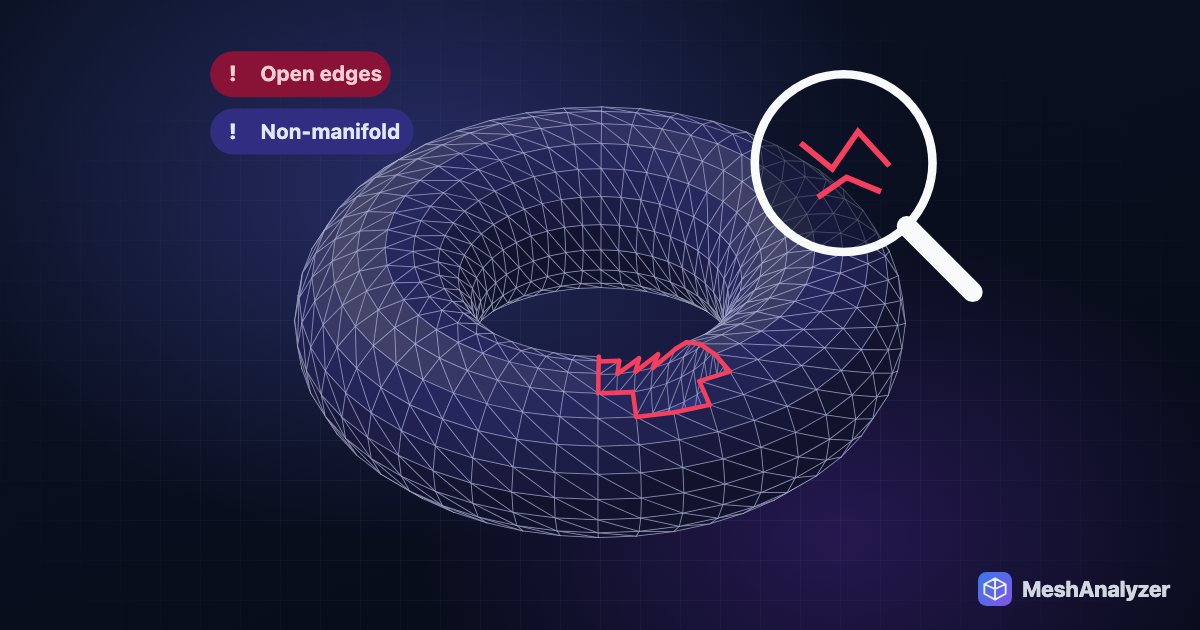
- Holes. Anywhere the scanner couldn’t see — the underside, deep crevices, shiny or dark areas — is simply missing. An open surface has no inside, so the slicer can’t fill it.
- Floating fragments. Bits of table, turntable or background captured as loose islands.
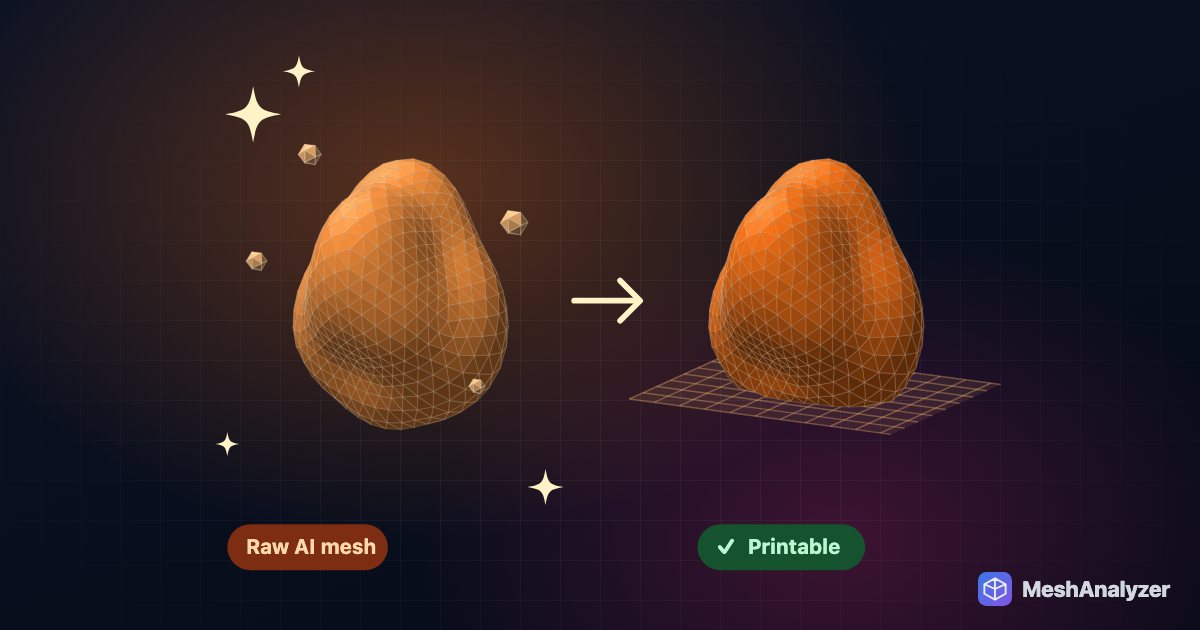
- A ragged bottom. The face the object stood on is usually missing or uneven.
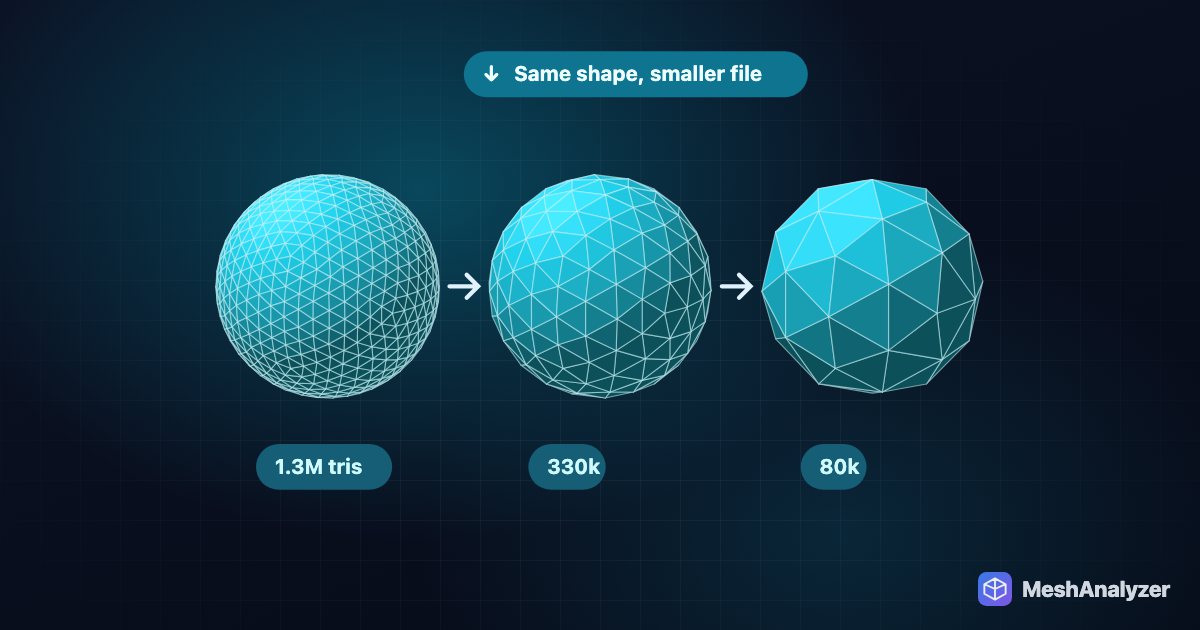
- Huge triangle counts — often millions, evenly spread.
- Unknown scale. Photogrammetry has no idea how big the object was unless you gave it a reference.
Before you export from the scan app
- Crop tightly to the object in the scanning software — it’s the best tool for removing the table.
- Export a mesh (STL, OBJ or PLY). If the app offers “watertight” or “fill holes”, try it — but check the result, because automatic hole filling in scan apps often bridges big gaps with a few large flat triangles.
- Note a real measurement of the object (its height, say) so you can set the scale later.
Clean up the scan in your browser
- Open the STL, OBJ or PLY in MeshAnalyzer. It runs locally, so a scan of your face, your product or a customer’s part never leaves your computer.
- 🧹 Remove floating bits. Deletes the small loose islands — dust, background specks — and keeps the main body (and real second parts, if any).
- ✨ Auto-Repair. Closes the holes, welds duplicate points, removes non-manifold fins and fixes flipped faces. You get a before/after report and the patched areas are highlighted so you can see what was filled.
- ▁ Flat base. Slices a little off the bottom so the scan stands flat on the bed and the ragged edge disappears.
- Decimate if the triangle count is in the millions. One or two passes usually lose nothing visible — see how far you can simplify.
- Set the real size. Type the real length of the longest side, in millimetres, into Real-world size in the Cost & Time panel, pick your printer and check it fits. Download a 3MF.
Thin areas and hollowing
- Check wall thickness. Ears, fingers and edges of scanned objects are often thinner than they look. MeshAnalyzer measures the thinnest point in millimetres; see safe minimums.
- Busts and statues on resin: hollow them to save resin and reduce suction forces, then add drain holes in your resin slicer.
Scanning tips for a cleaner start
- Even, diffuse light; no hard shadows.
- Dull shiny or dark surfaces with scanning spray or a light dusting of powder.
- Overlap passes generously and capture the underside in a second scan if your tool can merge them.
FAQ
Why won’t my 3D scan print?
Scans usually have holes where the scanner couldn’t see, loose fragments of background, an uneven bottom and an unknown scale. The slicer can’t fill an open surface, so the holes must be closed first.
How do I fill holes in a 3D scan?
Use an automatic mesh repair such as MeshAnalyzer’s Auto-Repair, which closes holes and highlights the patches. Very large missing areas are better rescanned.
Can I print a scan from my iPhone or Android phone?
Yes. Export the scan as STL, OBJ or PLY from the scanning app, clean it up — remove floating bits, repair, flat base, scale — and export a 3MF for your slicer.
How do I get the right size for a photogrammetry scan?
Measure the longest side of the real object and type it, in millimetres, into Real-world size in MeshAnalyzer; the model is scaled evenly to match.
Is my scan uploaded anywhere?
No. MeshAnalyzer processes the file in your browser on your own computer.
More reading: How to reduce STL file size without losing detail · How to 3D print an AI-generated model · How to fix non-manifold STL files for 3D printing
Turn a scan into a printable model
Remove specks, close holes, flat base, simplify — free to try, nothing uploaded.
▶ Open MeshAnalyzer